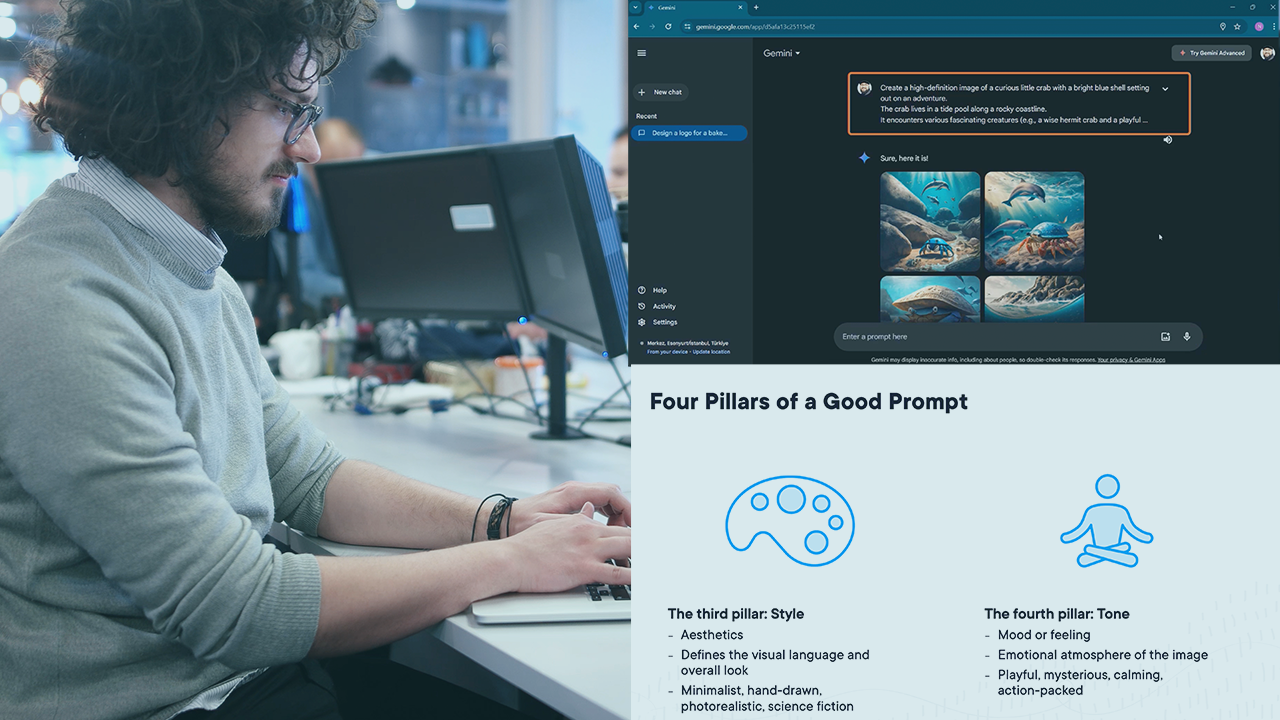
You've probably tried it already. You type a few words into the chat box, hit enter, and wait for the magic to happen. But instead of a masterpiece, you get something that looks... off. Maybe the hands have seven fingers, or the lighting feels like a cheap plastic lamp. Honestly, mastering a gemini prompt for image generation isn't about learning some secret code or being a "prompt engineer" with a fancy certificate. It’s about talking to the AI like it’s a talented but literal-minded artist who has seen every photo on the internet but has zero common sense.
The biggest mistake? Being too vague. If you ask for a "dog in a park," Gemini is going to give you the most average, stereotypical dog in the most boring park imaginable. It pulls from the center of its training data. To get something actually good, you have to push it toward the edges.
Stop Treating Gemini Like a Search Engine
Most people use a gemini prompt for image generation the same way they use Google. They type keywords. "Sunset. Beach. Realistic." That’s a recipe for mediocrity. Gemini, which runs on the Imagen family of models (specifically Imagen 3 in the latest iterations), works better when you describe a scene's vibe and technical specs simultaneously.
Think about lighting. Lighting is everything. Instead of "bright," try "golden hour backlight" or "harsh midday shadows." If you want something moody, mention "cinematic noir lighting" or "volumetric fog." You’re not just telling the AI what to draw; you’re telling it how to set the stage.
I’ve spent hours messing with these settings. One thing I noticed is that Gemini is actually quite sensitive to "texture" words. If you want a portrait to look like a real photo and not a 3D render, don’t just say "photorealistic." Mention the skin pores. Mention the "fuzz on a sweater" or "scratches on a lens." This forces the model to prioritize high-frequency detail over smooth, AI-generated surfaces.
The Power of Negative Space and Composition
We often forget to tell the AI where things should go. If you don’t specify, Gemini usually puts the subject dead center. It’s boring. It’s what a robot thinks a picture looks like.
Try using terms like "rule of thirds," "wide angle," or "extreme close-up." If you want a sense of scale, tell Gemini to use a "low-angle shot" looking up at a building. It changes the entire power dynamic of the image. Also, describe what isn't there. While Gemini doesn't have a dedicated "negative prompt" box like some other tools, you can bake it into your description. "A minimalist room with a single chair, heavy shadows, and vast empty white walls" tells the model exactly what to ignore.
Why Your Gemini Prompt for Image Generation Fails
It’s frustrating when the AI ignores half your prompt. This usually happens because of "prompt bleeding." If you say "a man in a blue suit holding a red apple in a green forest," Gemini might give you a red suit or a blue forest. The colors bleed into each other because the model processes the tokens in a way that sometimes mixes attributes.
To fix this, use "weighting" through description.
Instead of just listing colors, describe the objects as separate entities. "A man wearing a navy blue tailored wool suit. He is holding a crisp, bright red Fuji apple. The background is a dense, lush green forest with ferns." By adding adjectives specific to the objects (tailored, wool, crisp, Fuji), you're "anchoring" the attributes to the correct subjects. It's a simple trick, but it works surprisingly well.
Understanding the Imagen 3 Engine
Google’s Imagen 3, which powers Gemini's current image capabilities, is designed to be safer and more photorealistic than its predecessors. This means it has stricter filters. If your gemini prompt for image generation is getting blocked, it might not be because you’re doing something "bad." Sometimes, the AI is just over-cautious about copyrighted styles or public figures.
Don't ask for "a painting by Picasso." Instead, describe the style: "An abstract cubist painting with fragmented geometric shapes, a muted earthy palette, and heavy black outlines." You get the vibe without triggering the "copyright" alarm bells. It also gives you more control over the final look.
Real Examples of Gemini Prompts That Actually Work
Let's look at the difference between a "lazy" prompt and an "expert" one.
The Lazy Prompt:
"A futuristic city with flying cars."
The Result: Generic purple and blue neon, looks like a 2010 video game.
The Expert Prompt:
"A 70s retro-futuristic city, Syd Mead style. Massive concrete brutalist structures overgrown with hanging gardens. Flying vehicles that look like weathered industrial drones. Overcast sky, diffused natural light, cinematic wide shot, 8k resolution, shot on 35mm film with slight grain."
See the difference? You've specified the era (70s retro-futurism), the architectural style (brutalist), the lighting (diffused natural), and even the "camera" (35mm film). You’re giving Gemini a map, not just a destination.
The "Shot On" Trick
If you want your images to look like real photography, you need to speak the language of photographers. Gemini knows what different lenses do.
- 35mm or 50mm: Great for standard portraits.
- 85mm: Perfect for that blurry background (bokeh) look.
- 14mm: Ultra-wide for landscapes or architecture.
- Macro lens: For extreme details like insects or flower petals.
Mentioning the camera type helps too. "Shot on Fujifilm" often yields warmer, more "film-like" colors. "Shot on iPhone" gives that slightly sharpened, high-contrast look we’re used to seeing on social media. It’s a weirdly effective way to bypass the "AI look."
Dealing with Text in Images
One of Gemini's biggest upgrades is how it handles text. Older models were terrible at it. You’d ask for a sign that says "Coffee" and get "Cffoee." Gemini is much better, but you still have to be careful.
When writing a gemini prompt for image generation that involves text, put the text in quotes. "A neon sign in a rainy Tokyo alleyway that says 'LOST IN TIME' in bright pink letters." Keep the text short. The more words you ask for, the higher the chance the AI trips over its own feet and starts inventing new alphabets.
The Ethics and Limitations of AI Art
We have to talk about the "uncanny valley." Sometimes, no matter how good your prompt is, the eyes look a little soulless. This is where post-processing comes in. Don't expect Gemini to do 100% of the work. Often, the best AI artists use Gemini to get the base image and then use other tools to touch up the faces or fix the hands.
Also, remember that Gemini won't generate real people. If you try to prompt for a specific celebrity, it’ll likely give you a generic person who looks vaguely like them, or it might just refuse. Stick to descriptions of features—"a person with sharp cheekbones and messy salt-and-pepper hair"—rather than names.
Putting It Into Practice
Getting the perfect gemini prompt for image generation is really just a game of trial and error. You won't get it right on the first try. Gemini allows for follow-up prompts, which is its biggest strength. Use it.
If the image is too dark, don't start over. Say, "Make the lighting warmer and add more sunlight coming through the window." If the person looks too stiff, say, "Make the pose more dynamic, like they're caught mid-stride."
The AI is a collaborator, not a vending machine. Treat it like a conversation.
Actionable Next Steps for Better Images
- Pick a specific era or art movement. Instead of "modern," try "Art Deco," "Cyberpunk," or "Mid-century Modern." It gives the AI a specific visual library to pull from.
- Describe the weather. Weather changes everything about an image. Rain, snow, "post-storm clarity," or "humid haze" adds layers of atmosphere that "clear sky" just doesn't have.
- Use sensory words. Words like "velvet," "rusty," "glossy," or "weathered" help the AI understand how light should bounce off surfaces.
- Iterate, don't replace. If an image is 80% there, use the chat history to tweak the last 20% instead of throwing the whole prompt away.
- Experiment with aspect ratios. While Gemini often defaults to square, you can ask for "widescreen" or "vertical" to change how the composition is framed.
Start by taking a prompt you used last week and adding three specific details: one about lighting, one about texture, and one about the camera angle. You'll see the quality jump immediately.