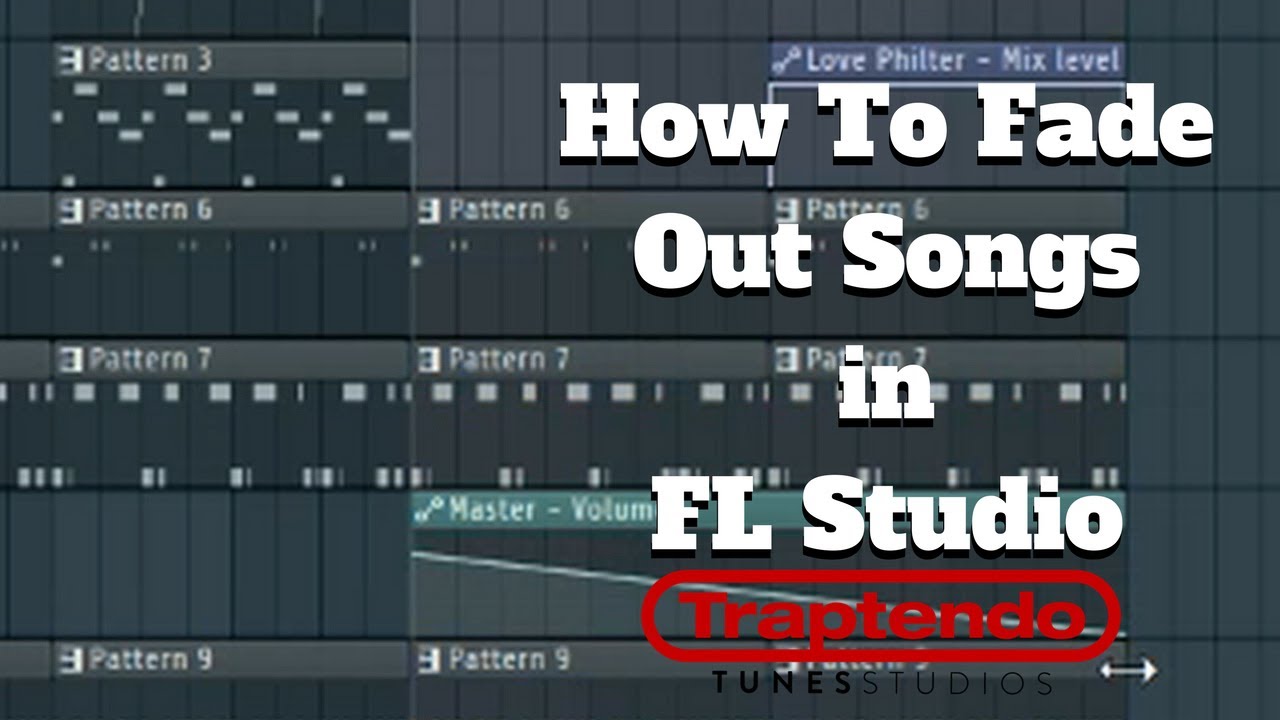
You’ve finally nailed that melody. It’s haunting, it’s catchy, and it’s almost perfect—except for that one long chord at the end that just stops dead. It sounds cheap. It sounds amateur. You want it to drift away into the abyss, but FL Studio doesn't exactly put a "fade out" button right on the note itself.
Learning fl studio how to make a note fade out is one of those hurdles that separates the bedroom clickers from the actual producers. Honestly, it’s kind of annoying that there isn't just one way to do it. But that's the beauty of this DAW. You have options. Whether you’re working with a stock synth like 3xOSC, a massive Kontakt library, or just a stray audio clip in the playlist, you can make that tail end smooth as butter.
The Slide Note Trick (The Native Secret)
If you’re using native FL Studio plugins like Sytrus, FLEX, or Harmless, this is basically the "God Tier" method. Most people think slide notes are only for those "pew-pew" laser sounds or sliding 808s. Nope. They control velocity over time too.
Here is the move:
Open your Piano Roll. Double-click the note you want to fade. Look at that little triangle icon in the top left of the note properties box—that's the Slide toggle. Actually, an easier way is to just click the triangle icon in the Piano Roll's top-left toolbar.
Now, place a tiny note directly at the end of your long note, or overlapping it. Set the velocity of this "slide" note to zero. Basically, you're telling FL Studio: "Hey, by the time the playhead hits this spot, I want the volume to be at nothing." The longer the slide note, the longer the fade. It’s elegant because it stays inside the pattern. No messy automation clips cluttering up your playlist yet.
Why Your ADSR Envelope is Probably Lying to You
We’ve all been there. You go into the Channel Settings, you mess with the Release (the 'R' in ADSR), and... nothing happens. The note still cuts off. This is usually because your MIDI note in the Piano Roll is too short.
Think of it like this:
- Sustain is how loud the note stays while you hold it.
- Release is how long it takes to go to zero after you let go.
If you want a note to fade out naturally every time it ends, you need to crank that Release knob. But—and this is a big but—if you are using a non-native VST like Serum or Vital, you have to do this inside the plugin’s own interface. FL Studio's envelope tab usually only works for the built-in Sampler and native synths. If you're using a piano sample and it’s clicking at the end, your Release is likely set to zero. Dial it up to about 200ms and see if that fixes your soul.
Automation Clips: The "Nuclear" Option
Sometimes the slide note doesn't work (especially with 3rd party VSTs) and the ADSR is too "set it and forget it." When you need a specific, cinematic fade out that follows a weird curve, you need an automation clip.
Don't automate the mixer fader. Just don't. If you automate the mixer fader to fade out, and later you realize the whole track is too quiet, you’re stuck fighting your own automation. It's a nightmare.
The Pro Workflow
- Load Fruity Balance as the last effect on your mixer track.
- Right-click the Gain knob.
- Select Create automation clip.
- Go to your Playlist and draw the slope.
This keeps your mixer fader free for actual mixing. You can make the fade exponential, linear, or some weird "S" curve if you're feeling spicy. It works on everything. Audio clips, MIDI, screaming vocals—doesn't matter.
Dealing with Audio Clips vs. MIDI
If you aren't even in the Piano Roll and you're just looking at a waveform in the Playlist, life is actually easier now. In the latest versions of FL Studio (21 and up), they finally added Fade Handles.
Look at the top corners of your audio clip. See those little white squares? Grab the one on the right and pull it left. Boom. Fade. You can even right-click the handle to change the curve shape. It's so much faster than the old way of "Automate > Volume." If you don't see those handles, you probably have "Shift-M" (Multi-tool) turned off or you're in an older version of FL that we don't talk about anymore.
When Things Go Wrong
Sometimes a note just won't fade. It’s stubborn. Usually, this happens with "one-shot" samples. If you have a drum hit or a short vocal stab, FL Studio plays the whole file no matter what. To fix this, go to the Envelope tab in the Sampler settings (the little tab with the graph), turn it on, and pull the Sustain all the way up and the Decay all the way down. Now, the sound will actually stop the moment the MIDI note ends, allowing your Release setting to finally do its job.
Actionable Steps for Your Next Session
- For Native Synths: Use a 0-velocity slide note in the Piano Roll for a "per-note" fade.
- For Samples: Turn on the envelope in Channel Settings and adjust the Release knob.
- For 3rd Party VSTs: Use Fruity Balance on the mixer and create an automation clip.
- For Audio Clips: Use the built-in fade handles at the top right of the clip in the playlist.
Stop letting your notes end abruptly. A 50ms fade can be the difference between a "clicky" amateur track and something that actually sounds professional. Pick one of these methods and go clean up those tails.