You've probably seen the videos. Someone takes a gorgeous sunset photo, but there’s a random trash can or a photobombing stranger ruining the vibe. They tap a button, squiggle over the intruder, and—poof—it's gone. This is the "Clean Up" tool, part of the Apple Intelligence suite. But if you’re searching for a way of downloading clean up ios 18 as a standalone app from the App Store, I’ve got some news for you.
It doesn't exist. Not as a separate app, anyway.
Honestly, the way people talk about it makes it sound like a new piece of software you go out and grab. In reality, it’s a feature buried inside your existing Photos app, provided you have the right hardware and the right version of iOS 18. Specifically, you need iOS 18.1 or later. If you’re still on the base version of iOS 18.0 that launched in September 2024, you’re not going to see it.
The Hardware Gate: Why Your iPhone Might Be Left Out
Here is the kicker. Not every iPhone running iOS 18 can actually use the Clean Up tool. It’s a bit of a bummer for people holding onto older models. Apple’s "Apple Intelligence" requires some serious under-the-hook muscle—specifically 8GB of RAM and the A17 Pro chip or better.
Basically, if you don't have one of these, you're out of luck for the native tool:
- iPhone 16, 16 Plus, 16 Pro, or 16 Pro Max
- iPhone 15 Pro or 15 Pro Max
- The new iPhone 16e (which joined the lineup later)
- Any iPad or Mac with an M1 chip or newer
If you're rocking an iPhone 14 Pro or an iPhone 15 base model, you can download iOS 18 all day long, but the Clean Up button simply won't appear. It’s a hardware limitation, or so Apple says.
How to Actually "Download" and Activate Clean Up
Since it’s not an app, "downloading" it really just means updating your system software and then letting the Photos app grab the necessary AI models in the background.
First, head to Settings > General > Software Update. You need to be on at least iOS 18.1. Once that's installed, you have to join the Apple Intelligence waitlist if you haven't already. Usually, the "wait" takes about five minutes nowadays, but back when it launched, it was a whole thing. Go to Settings > Apple Intelligence & Siri and flip the switch.
Now, here is the part where the actual downloading happens.
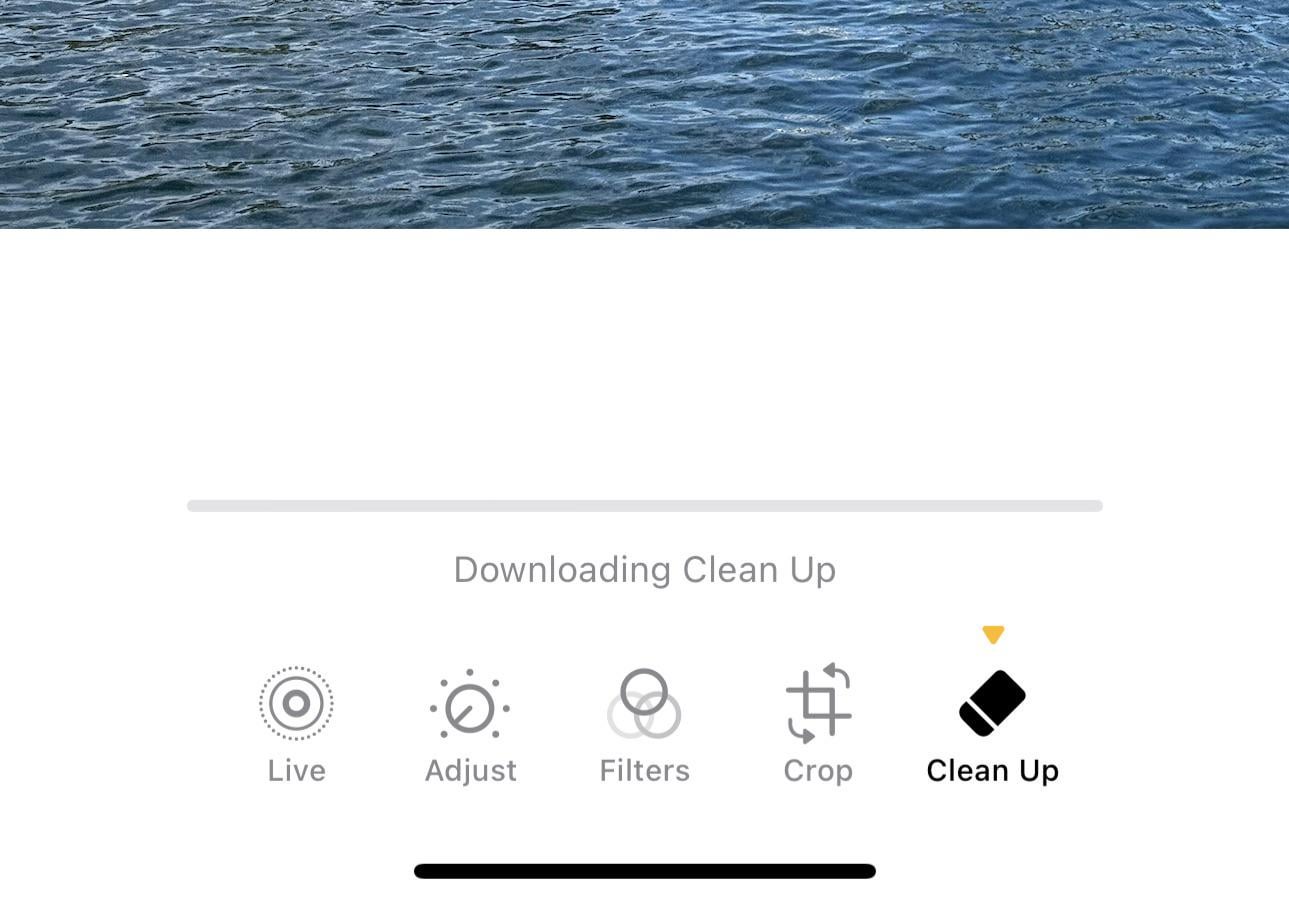
Open any photo in your gallery. Tap the Edit button (the three horizontal sliders or the "Edit" text). You’ll see a new icon that looks like a little pinkish-purple eraser. Tap that. The first time you do this, your phone will say "Downloading..." and a small progress bar will appear. It’s downloading a few hundred megabytes of generative AI models so it can do the heavy lifting locally on your device.
Using the Tool Without Making It Look Fake
Once it's ready, the phone actually tries to be smart. It’ll highlight things it thinks are distractions with a sort of "glow." You can just tap those.
But sometimes it misses stuff. You can use your finger to brush over an object or circle it. My advice? Don't overdo it. If you try to remove a person standing right in front of a complex brick wall, the AI might give them a "ghostly" smudge look. It works best on backgrounds like sky, water, or grass.
One weirdly specific feature: if you circle a person’s face, the AI sometimes chooses to pixelate/blur it instead of removing it entirely. It’s a privacy thing, I guess.
Why You Might Not See the Feature (Even on an iPhone 16)
There are a few "gotchas" that trip people up.
- Storage: You need a decent amount of free space. If your iPhone is red-lining on storage, it won't download the AI models.
- Region: If you are in the EU or China, Apple has had some public tussles with regulators. While features have been rolling out gradually through 2025, some regions still have "Apple Intelligence" greyed out.
- Language: Your Siri and System language must be set to a supported version of English (like US, UK, or Australia) or one of the newer supported languages like French, German, or Italian that were added in the 2025 updates.
What Happens to the Metadata?
Apple is big on "transparency" here. When you use Clean Up to modify a photo, the image file gets tagged in the metadata. It basically tells the world, "Hey, this photo was edited using generative AI." You won't see a watermark on the picture itself, but if you upload it to a site that reads metadata, the secret is out.
Also, it’s worth noting that using Clean Up kills the "Live" part of a Live Photo. It turns the image into a static shot. You can always hit Revert to get your original photo back, though. Nothing is permanent.
Next Steps for You
- Check your Model: Go to Settings > General > About and make sure you have at least an iPhone 15 Pro or any iPhone 16/17 series model.
- Update iOS: Ensure you are on the latest point release (at least 18.1 or higher) to ensure the Photos app has the feature integrated.
- Trigger the Model Download: Open a photo, hit Edit, and tap the eraser icon to start the one-time background download of the AI assets.