Honestly, the struggle is real. You're sitting there, trying to download Monster Hunter Now updates or maybe a niche rhythm game that's stuck behind the digital Great Wall of Japan, and the App Store just tells you "No." It's frustrating. You’ve probably seen a dozen outdated tutorials from 2021 that tell you to just "log out and back in," but Apple has tightened the screws significantly over the last few years.
If you want to know how to make a Japanese Apple ID in 2025, you need to realize that the old "no payment method" trick is finicky now. It still works, but only if you follow a very specific path. Apple’s security AI is much better at spotting when someone is "traveling" digitally, so you have to be smarter than the machine.
The Region Lock Reality Check
Why do we even do this? It’s not just for the games, though the Japanese App Store is basically a goldmine for Gacha titles and early-access RPGs that never see a Western release. It's about the ecosystem. Some Japanese productivity apps or even official brand apps for companies like Uniqlo or Lawson only live in that specific storefront.
The biggest hurdle people face isn't the Japanese language—DeepL or Google Translate handles that—it's the verification. Apple wants to know you're "local." They want a local address, a local phone number, and ideally, a local way to pay. But here’s the secret: you don't actually need the payment part right away. You just need to trick the onboarding process into thinking you're setting up a "free" profile.
Starting Fresh: The Web Browser Method
Don't start on your iPhone. Seriously.
If you try to create a new ID directly in the iOS Settings app, the system often forces a phone number verification that’s tied to your device’s current GPS or SIM region. It's a trap. Instead, grab a laptop or use Safari in private mode.
Go to the official Apple ID creation page (https://www.google.com/search?q=appleid.apple.com).
When you fill out the forms, make sure you select Japan as your country. Use a fresh email address. Don't use that old Gmail you've had since 2012 that’s already linked to your US or UK account. It won't work. Outlook or ProtonMail are usually safe bets for this.
You’ll need a phone number. This is where most people panic. Here is the thing: Apple usually allows you to use your current, non-Japanese phone number for the initial account security (Two-Factor Authentication). The "Japanese" part only matters for the App Store address. Use your real mobile number so you can actually get the SMS code.
The Address Problem
Once the account is created on the web, it’s a "hollow" account. It has no home. You need to give it a Japanese residence.
Now, I’m not saying you should go find a random hotel in Shinjuku and use their address... but that’s exactly what everyone does. Find a legitimate address for a public place, like a library or a major hotel. You'll need the Postal Code (7 digits), the Prefecture (like Tokyo or Osaka), and the specific city/ward.
- Postal Code Example: 160-0021
- Prefecture: Tokyo
- City: Shinjuku-ku
If the zip code and the prefecture don't match, the system will kick you out. Accuracy is everything here.
Signing In: The Moment of Truth
Now, take your iPhone.
Do not sign out of your main iCloud account in the main Settings menu. That will mess up your photos, your iMessages, and your sanity.
Instead, open the App Store app. Tap your profile icon at the top right, scroll all the way to the bottom, and hit Sign Out. This only signs you out of the store, not your phone.
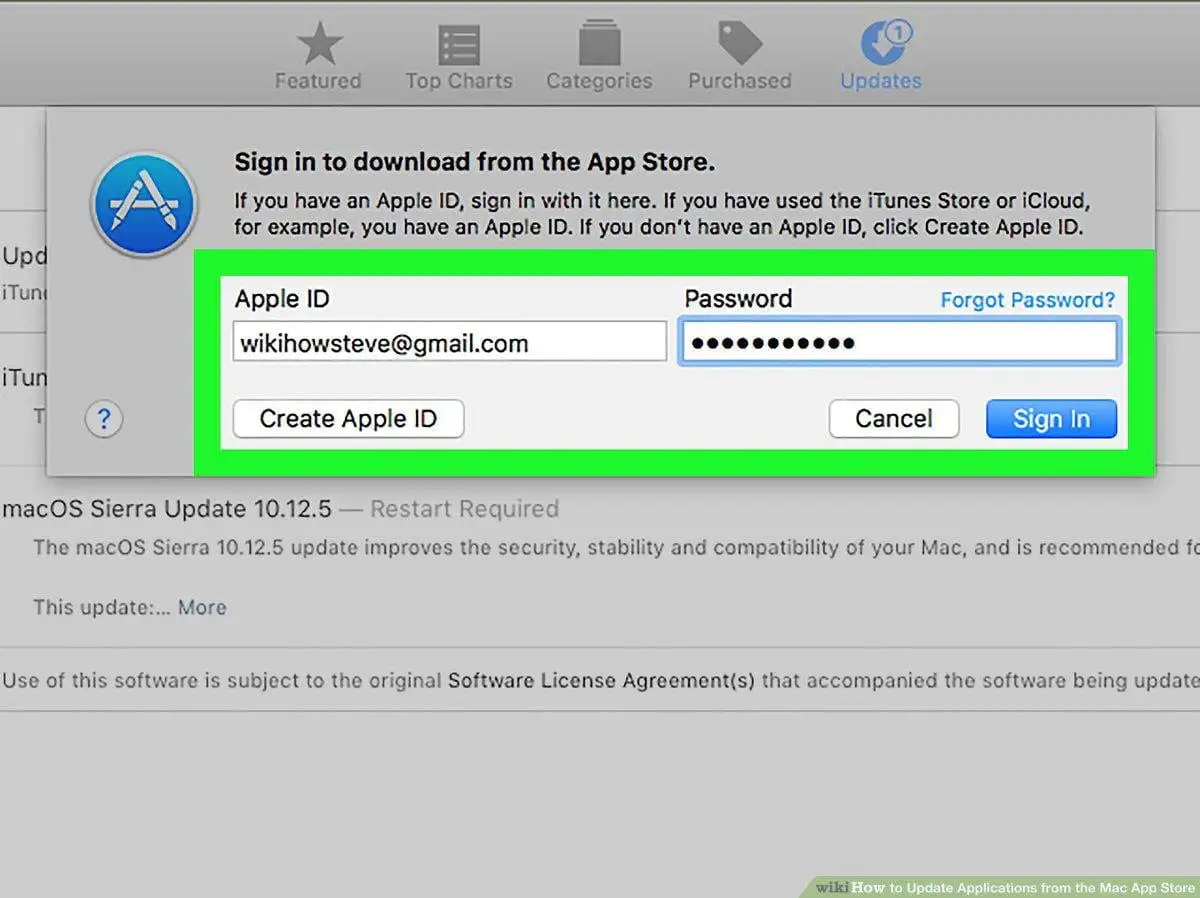
Now, sign in with your brand new Japanese credentials.
The first time you do this, a prompt will pop up saying "This Apple ID has not yet been used in the iTunes Store." Tap Review. This is the most critical stage of how to make a Japanese Apple ID in 2025.
Selecting "None"
When the "Complete Your Account" screen appears, you'll see a list of payment methods: Credit/Debit Card, Career Billing, etc.
If you did everything correctly—especially if you initiated this through a "free" app download—you should see an option for None (or なし in Japanese).
If you don't see "None," it usually means one of two things:
- You have a VPN on that Apple has blacklisted.
- You tried to sign up through the "Settings" app instead of the "App Store" app.
Select None. Re-enter that Shinjuku address you found earlier. For the phone number in this specific section, you can often use a generic Japanese format (e.g., 03-xxxx-xxxx).
Dealing with the Phone Number Wall
In late 2024 and heading into 2025, Apple started getting more aggressive with "Device Verification." Sometimes, even after the account is made, they might ask for a Japanese phone number to verify the store account.
If you're hit with this, you can't really use a "disposable" SMS site. Most of those numbers are flagged.
The workaround? Usually, if you wait 24 hours and try again on a different network (like switching from Wi-Fi to 5G), the prompt might disappear. Or, try "purchasing" a completely different free app. The system is weirdly inconsistent, and sometimes persistence is the only tool that works.
Funding Your Account Without a Japanese Card
So, you’re in. You can see the Japanese text, the weird dating sims, and the exclusive anime streaming apps. But what if you want to actually buy something?
Your US or European Visa/Mastercard will not work. Period.
Apple checks the "Issuing Country" of the card. To buy anything, you have two real options:
- Japanese iTunes Gift Cards: This is the gold standard. Sites like Play-Asia or OffGamers sell digital codes. You pay with your local currency, they email you a Japanese code, and you redeem it in the App Store.
- Wise (sometimes): Some users have had luck using a virtual Wise card if they can set the billing address to Japan, but it's hit or miss these days.
Gift cards are safer. They don't get your account flagged for fraud.
Maintenance and Updates
Here is a pro tip: You don't need to stay logged into the Japanese account to play the games.
Once the app is downloaded to your iPhone, you can sign out of the Japanese ID and sign back into your main account. The app will stay on your home screen and work perfectly.
The only annoyance is updates. When Fate/Grand Order or whatever you've downloaded needs an update, the App Store will ask for the password of the Japanese account. You don't even have to switch accounts; a popup will just ask for the password.
Common Pitfalls to Avoid
Don't use a VPN unless you absolutely have to. Most high-end VPNs (Express, Nord) have IP addresses that Apple recognizes as "Data Centers." If they see you signing up from a data center, they might shadowban the account creation.
Also, keep your login info safe. If you lose access to that "fresh" email you created, getting the account back is a nightmare because you won't have the "local" Japanese support documents to prove who you are.
Summary of Actionable Steps
- Create a new email address that has no previous ties to Apple services.
- Use a desktop browser to register the initial Apple ID at https://www.google.com/search?q=appleid.apple.com, selecting Japan as the region.
- Sign out of the App Store only on your iPhone—leave your main iCloud account alone to avoid data loss.
- Search for a free app first to trigger the "Review" process, which helps in getting the "None" payment option to appear.
- Use a valid Japanese address and postal code during the store setup; consistency between the zip code and prefecture is mandatory.
- Purchase digital Japanese iTunes cards from reputable third-party sellers if you need to buy paid content or in-game currency.
- Switch back to your primary ID for daily use, only providing the Japanese password when the apps require an update.
Making this work in 2025 requires a bit more patience than it used to, but once that Japanese storefront opens up, it’s worth the ten minutes of setup.